The account, together.
Three buildings. One place to review the records your provider has shared.
Each client gets a portal for their own buildings. They open tickets, see which visits were completed or missed, read inspection scores, and ask for quotes. Every ticket gets a due time from its priority, and overdue tickets sort to the top.

Follow the story as you scroll, or choose a moment below.
A missed flag means no report by the deadline.
Floor 2 · Common areas
Illustrative record · not live customer data
A clear next action, attached to the right building. This demonstration sends no notifications.
Illustrative product story · fictional sample data
Three buildings. One place to review the records your provider has shared.
Open a visit to find its time, assigned crew, and example photo attachments.
A supply request stays connected to the building that needs attention.
Try the interactive exampleChoose a building and explore its service records, inspections, and ticket example. All names and data are fictional.
September 21, 2026 · Illustrative workflow
Choose a building
Chicago, IL · America/Chicago
A submitted report links the visit to its service record. Photos are attached by signed-in crew members.
Priority: Normal · Due September 23, 2026 · 12:00 PM CT
A due time gives the team a deadline. It does not imply that an email notification was sent.
OpenDenver, CO · America/Denver
No report was received before the deadline. A missed flag calls for follow-up; it is not independent proof that nobody cleaned.
No inspection is included for this site in this sample account.
No open tickets are included for this building in the example.
Austin, TX · America/Chicago
A submitted report links the visit to its service record. Photos are attached by signed-in crew members.
No inspection is included for this site in this sample account.
No open tickets are included for this building in the example.
Give clients a place to check before they call.
Issues, cases, service requests, and tenant submissions for every building land in one list. Clients filter it by type or status, or search it.
Every ticket gets a due time when it's opened. By default an urgent ticket is due in 4 hours and a low-priority one in a week. Overdue tickets sort to the top.
Clients see the score for each completed inspection, the result for each item, and any deficiencies, along with their average score across buildings.
Completed, missed, and upcoming visits, with a completion rate for each building. Service reports your team publishes show up here too.
Invite tenants and assign them the areas they occupy. They submit cleaning requests and issue reports with photos, and answer satisfaction surveys.
Turn portal sections like inspections, reports, or service history on or off for one client, or for every client at once.
These are explanatory examples of assigned access, not a live account or an impersonation session.
Review Harbor Point, Riverside, and Oakline in the example above. Follow the records and issues for buildings assigned to your client account.
A tenant’s portal access follows the areas assigned to that tenant. A Harbor Point tenant does not inherit the property manager’s entire three-building portfolio.
Property managers open issues, cases, and service requests from the portal, and tenant submissions land in the same inbox. JanGuard gives each ticket a due time from its priority. The inbox shows how long until a ticket is due, or how long it has been overdue, and lists overdue tickets first.

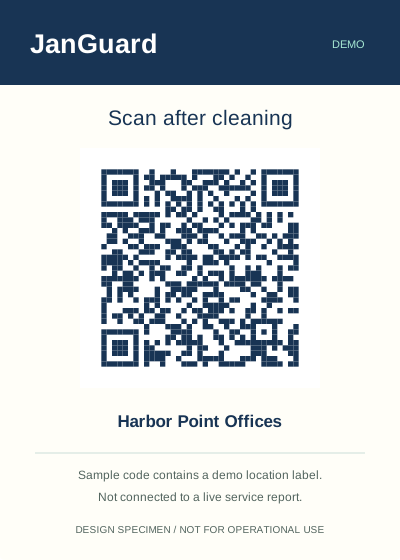
When a cleaner scans the building's QR code and submits the report, the visit counts as completed. A visit with no report by its deadline shows as missed. Property managers see the same records in the portal, with a completion rate for each building and a calendar view.
Completed inspections show up in the client's portal with the score, the result for each item, and any deficiencies. The top of the page shows how many inspections were done, the average score, and how many deficiencies are still open across their buildings.

Invite them from the client's page in JanGuard as a client admin or a client user. They get an email to set up a login, and they see only that client's buildings. The portal runs in the browser, including on a phone.
Yes. Tenants get their own portal. Your team invites a tenant from the client's page and assigns the areas they occupy. Tenants submit cleaning requests and issue reports with photos, read service reports, and answer surveys. Their submissions show up in the property manager's inbox.
Yes. Portal settings have a switch for each of ten sections, including issues, requests, service history, inspections, and reports. Turn a section on or off for one client, or for every client at once.
Yes. The client demo page lists your clients and their portal contacts. Open the portal as one of those contacts to walk a client through it. A banner at the top takes you back to your own account, and changes you make in the portal are real.
Set up your buildings and crews, print your QR codes, and watch the first reports come in. 30-day free trial.